

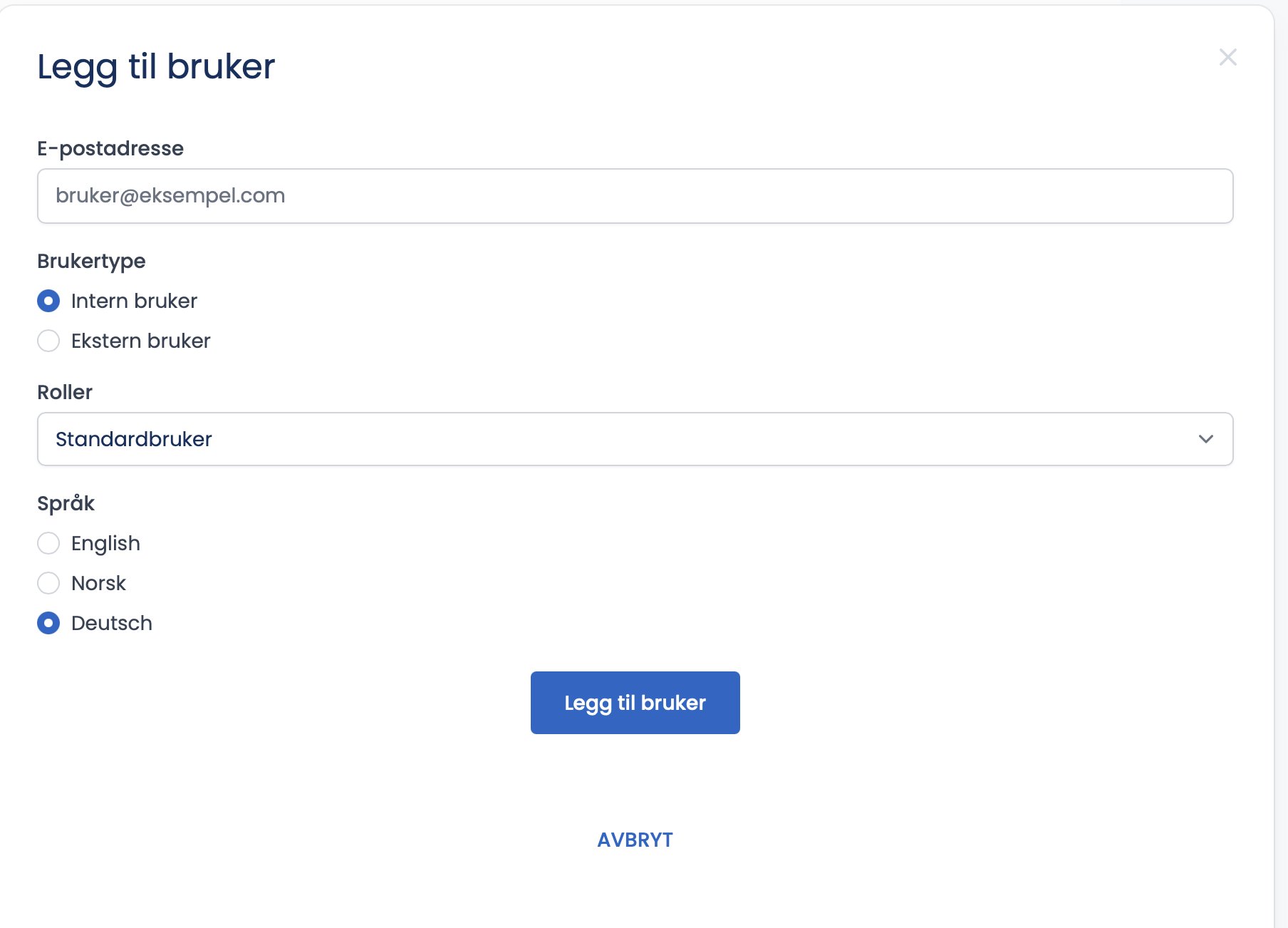
When you click “Add user”, a dialog opens where you fill in everything at once: email, user type, role if relevant, and language.
How to do it
- Enter the person’s email address.
- Choose user type: “Internal user” or “External user”.
- Choose the language for the user: English, Norsk or Deutsch.
- Click “Add user”.
The two user types
- Internal user. An employee of the company who is going to work on the platform. When you choose an internal user, a “Roles” field appears where you select the role, see the next article.
- External user. An observer who does not work at the company, but who should be able to see a completed assignment. External users have no role selection, because they only get view access. Typically the homeowner or an insurance company for a residential inspection, or a certification body such as NEMKO or DNV, an insurance company or the property owner for a commercial inspection.
Tips
Choose external user when you want to give visibility without giving access to make changes. External users can view, but not carry out inspections.