

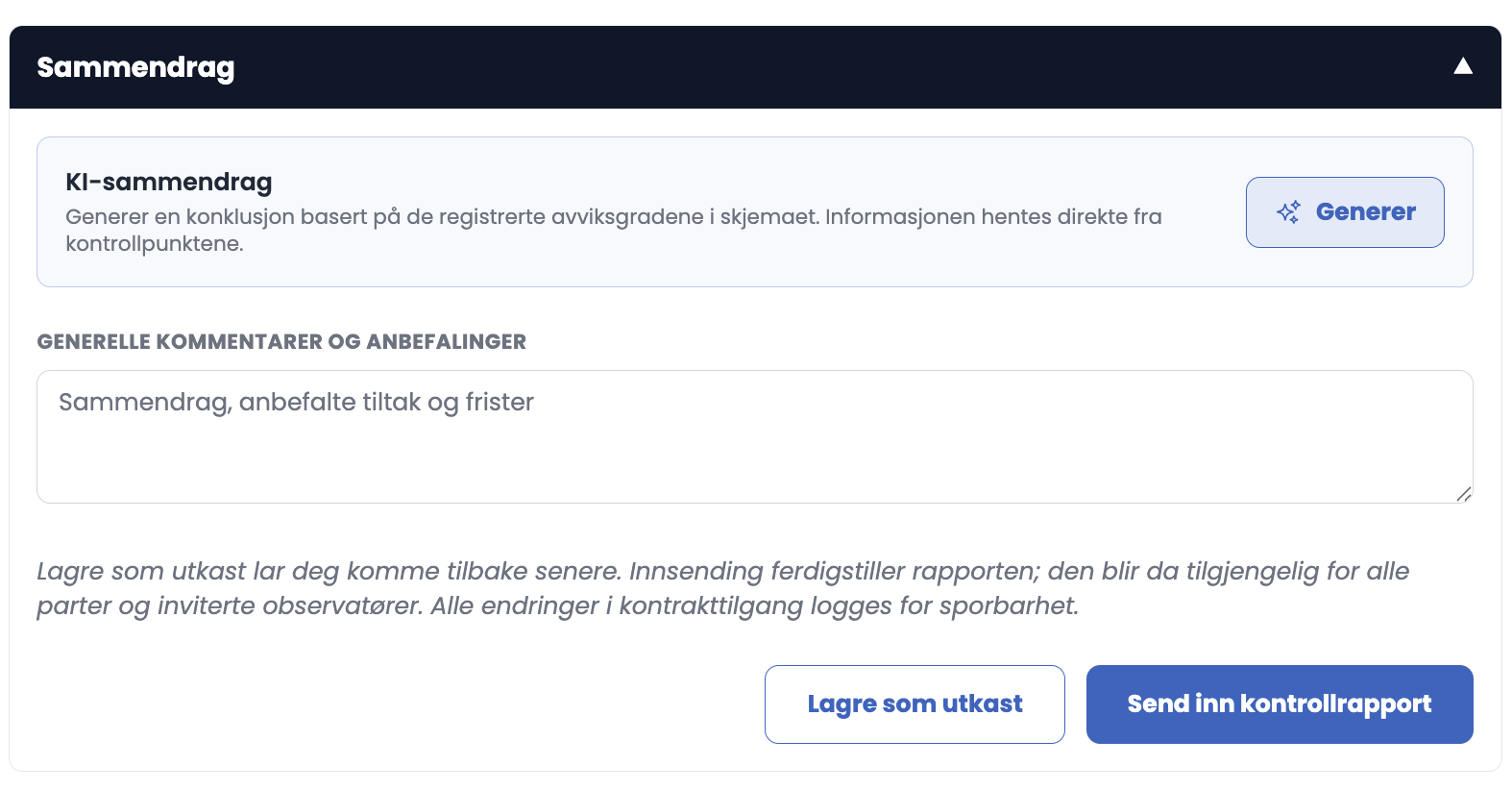
At the bottom of the form you write the conclusion, and you can let AI suggest one to start from.
How to do it
- Click “Get AI summary”.
- The text is written into the GENERAL COMMENTS AND RECOMMENDATIONS field.
- Read it through and edit it. The text is your responsibility, not the AI's.
- Save draft, or go on to submission.
Good to know
- The summary is based on the condition grades you have registered on the inspection points. It counts the number of points per grade and gives a recommendation on prioritisation.
- The text is fully editable.
- Generating can take up to half a minute. If the field stays empty, click once more.
Tips
- Only generate once all inspection points have been assessed. If you do it halfway, it summarises a half-finished form.
- Rewrite the opening sentence in your own words. The customer notices the difference between a text that has been read through and one that has not.
- Check that the conclusion actually mentions the TG3 findings. Those are the ones that require immediate action.
Can I write the conclusion myself instead?
Yes. The field is an ordinary text field, and you do not have to use “Get AI summary” at all. The AI summary is a starting point, not a requirement.