

The form has two AI features, and they do quite different things. One helps you while you register a deviation. The other proposes a conclusion when you are done.
1. Guidance in the deviation dialog
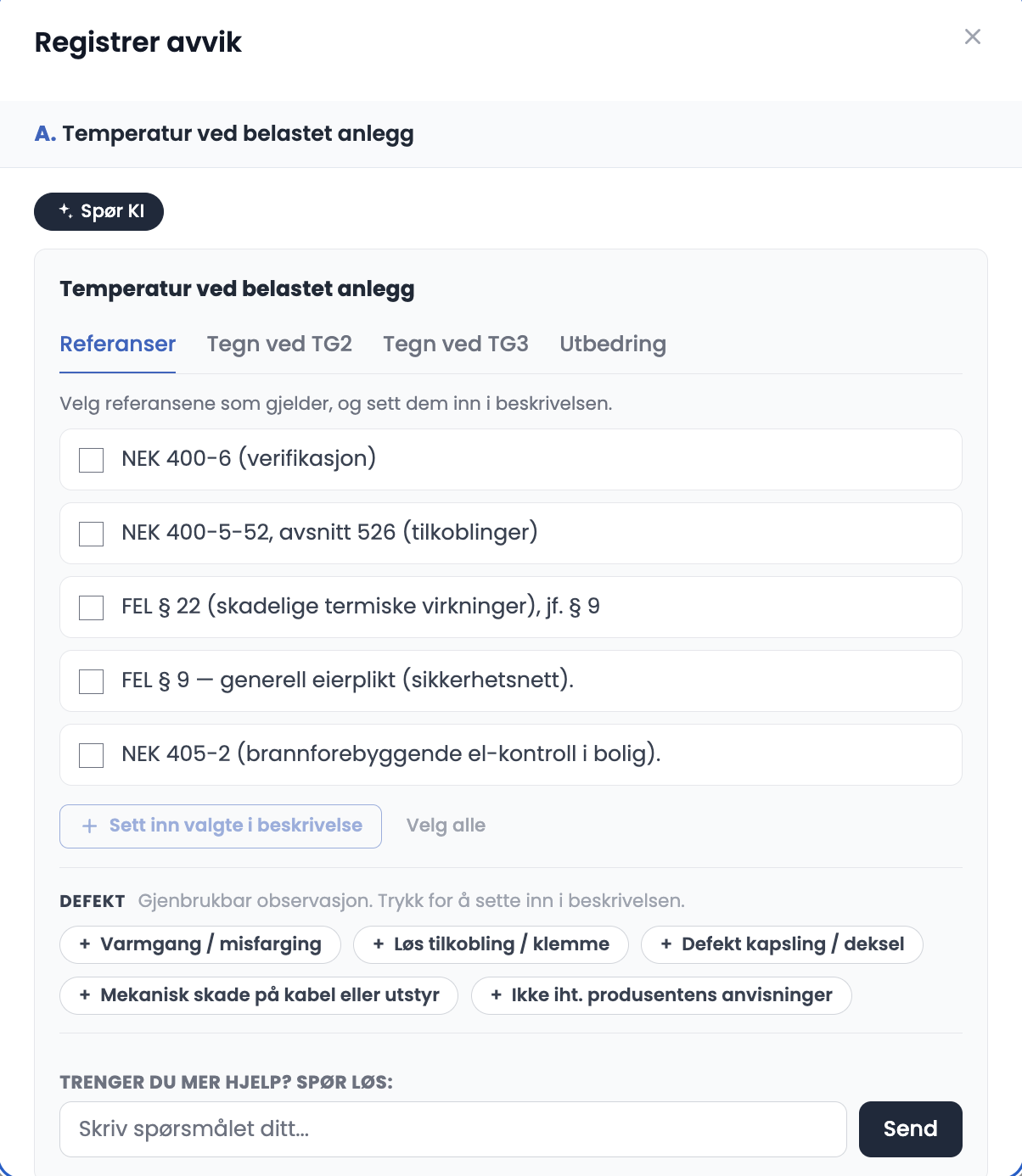
- When you open a deviation, the guidance panel sits at the top of the dialog, above the condition grade buttons.
- The tabs are References, Signs at TG2, Signs at TG3 and Remedy. References shows the legal basis for the point, for example NEK 400-5-52 clause 526 and FEL § 22.
- Each suggestion has an Added toggle. Select the ones that apply, then click Insert selected into description, or Insert selected into recommended remedy.
- Select all marks every suggestion in the open tab.
- Below the tabs is “Need more help? Ask Løs:” with a question field and a Send button. There you can ask a free-form question about the point.
2. AI summary in the Summary section
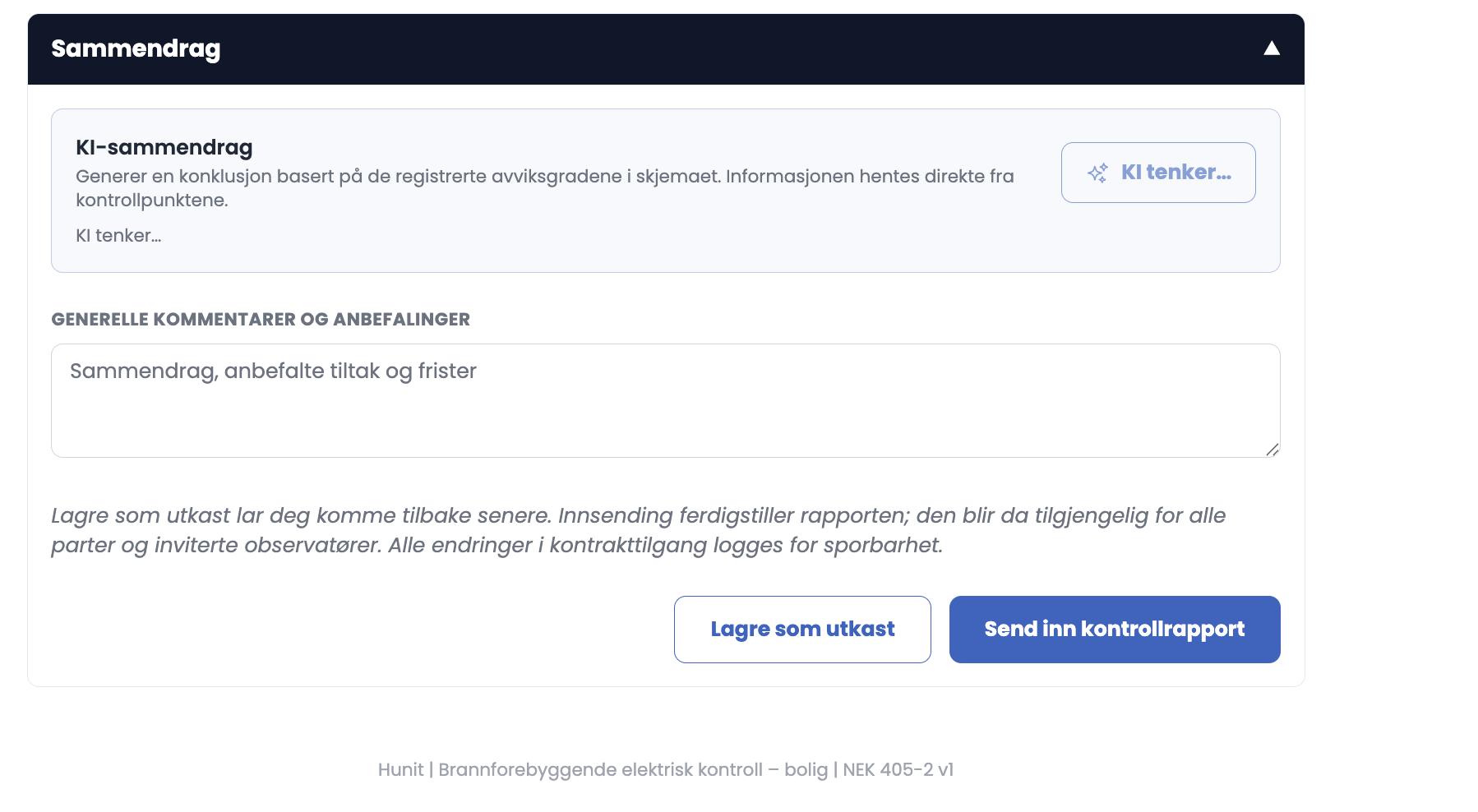
- At the bottom of the form, in the Summary section, sits the AI summary box with a Generate button.
- The help text says it plainly: the summary is generated from the registered deviation grades, and the information is taken directly from the inspection points.
- The text is written into the field General comments and recommendations, and is freely editable afterwards.
- AI assistance is switched off once the report has been submitted. If you save as a draft, it stays active.
Good to know
- The summary knows only what you have registered. Generate it halfway through and it summarises a half-finished form.
- It does not know the age of the installation, what the owner told you, or what you think should be prioritised. You have to add that yourself.
- The guidance panel is a reference work, not an assessment. It suggests legal basis and typical signs. You set the grade.
- You do not have to use either of them. Both fields are ordinary text fields.
Tips
- Generate only once all 18 points have been assessed. Then the summary matches the report.
- Rewrite the opening sentence in your own words. The customer can tell the difference between text that has been read through and text that has not.
- Check that the conclusion mentions the TG3 findings explicitly. Those are the ones that require immediate action.
- Use Insert selected into description rather than Select all. A description with every legal reference in it is unreadable for the owner.
Is the AI summary an assessment?
No. It is a summary of the grades you set yourself, turned into sentences. The assessment is yours, and the responsibility is yours. Read it through, correct what is imprecise, and add what the AI cannot know.